Table of Contents
- Use cases
- Streaming Server
- YouTube Initial Setup
- Capture livestream content - simple with YouTube Go Live
- More sophisticated livestream content with Open Broadcaster Software (OBS)
- Record Your Channel ID
- Livestream Portability with a cell phone and Streamlabs
- Presentation
- Putting it all together
- D. Greg Scott public videos channel livestream
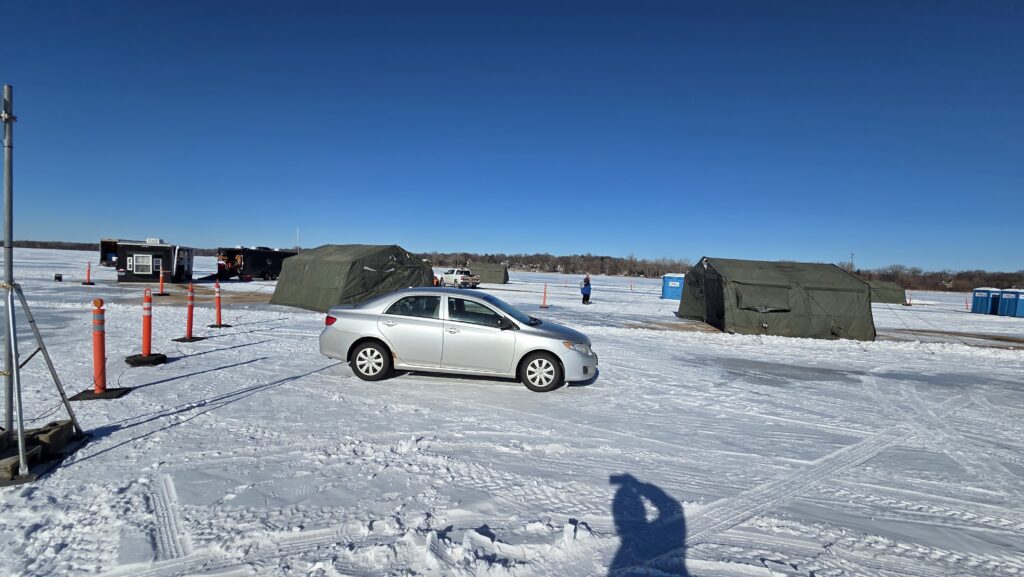
My main livestream use case is an annual event called Holes 4 Heroes, on top of frozen Medicine Lake in Plymouth, Minnesota, every February. From that experience, I published How to present a quality livestream without spending one penny in 2019, and How to run a livestream event for less than $100 that rivals any network TV production in 2021, when the world was in the middle of the COVID-19 pandemic. I also used that experience to livestream my oldest grandson's graduation from United States National Guard basic training in August, 2025. But by 2026, my livestream tactics badly needed an update.
Another important livestream use case might be recording gun-toting guys wearing masks, driving SUVs, and causing mayhem in the streets. Sooner or later, one of these guys will destroy a cell phone recording a video of them committing crimes. If you're livestreaming it, the video from your phone flying through the air, or somebody's foot stomping your phone, might be the key piece of evidence that puts them in prison. It might also help you win the lawsuit to replace your phone.
The challenge is, how to make running a livestream as quick and easily as launching a camera app to record video for later upload. I finally solved that problem getting ready for Holes 4 Heroes 2026. Here is how to do it.
First, from my 2021 post about this, every livestream needs at least three ingredients:
- A streaming server or service,
- A way to capture content at the event site to send the video stream to the streaming server,
- A way for the public to view your content.
Streaming server - YouTube
Services like YouTube, Twitch, Tiktok, Facebook, Instagram, and others offer free streaming services. I like YouTube. I used to also use Facebook, but Facebook recently got rid of all recorded videos, including several I had recorded with Facebook Live over the years, and announced it would no longer keep livestreamed videos longer than thirty days. All public cloud services present a similar risk, but YouTube makes money by offering videos and has an incentive to keep them.
So... YouTube as a streaming service for the foreseeable future. But it's always a good idea to keep your own copy of all your content. Never know when a cloud service will change its rules.
YouTube Initial Setup
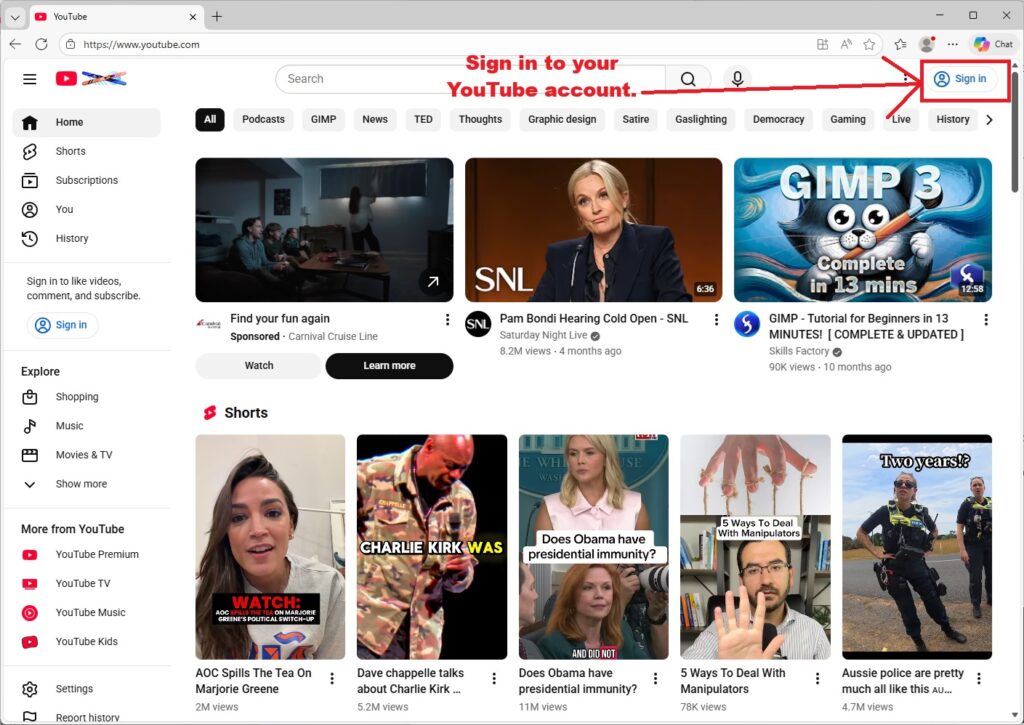
To create a YouTube channel and set it up to livestream your content, launch any web browser and go to https://www.youtube.com.
- Click the "Sign in" button and then either sign in or create a new Google account. (Google owns YouTube.)
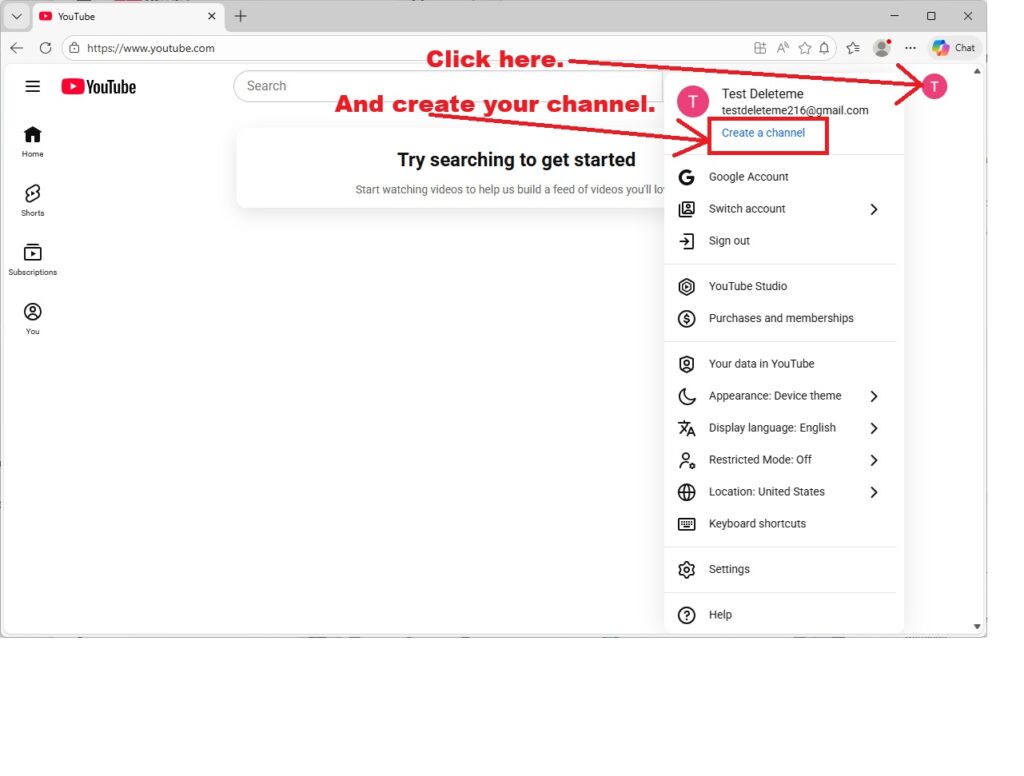
- Once signed in, click your profile icon in the upper right corner and select "Create a channel."
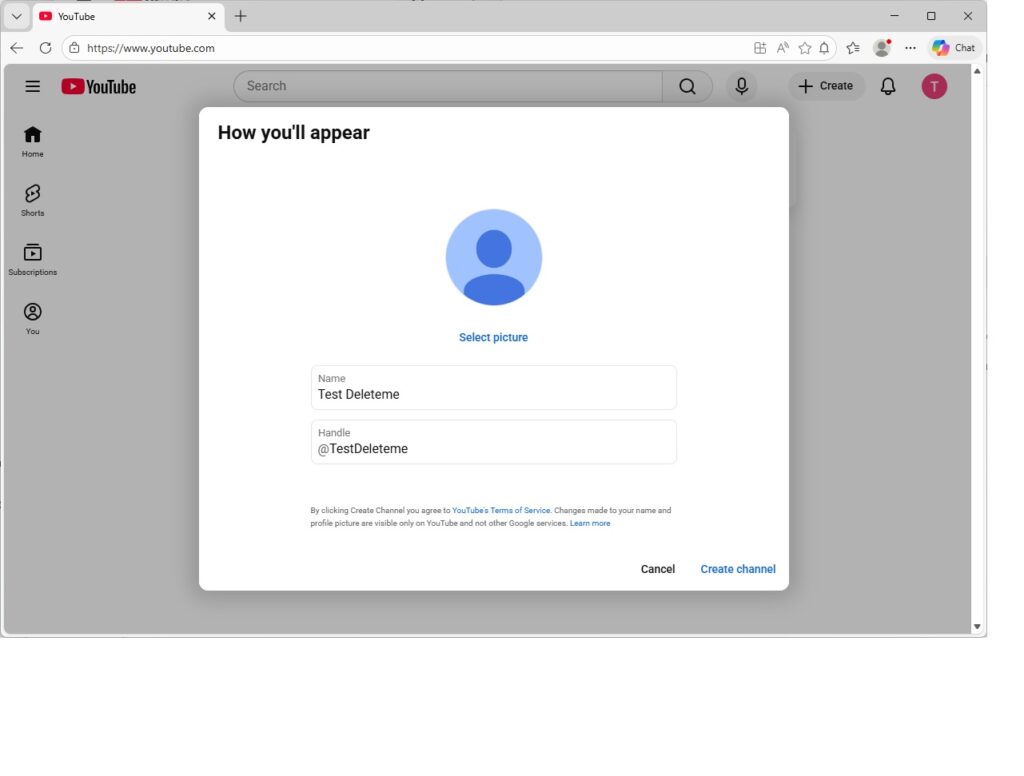
- In the next screen, give your new channel a name and handle. Your audience will find your channel URL at https://www.youtube.com/@ChannelNameWithoutSpaces. Upload a profile picture if you want.
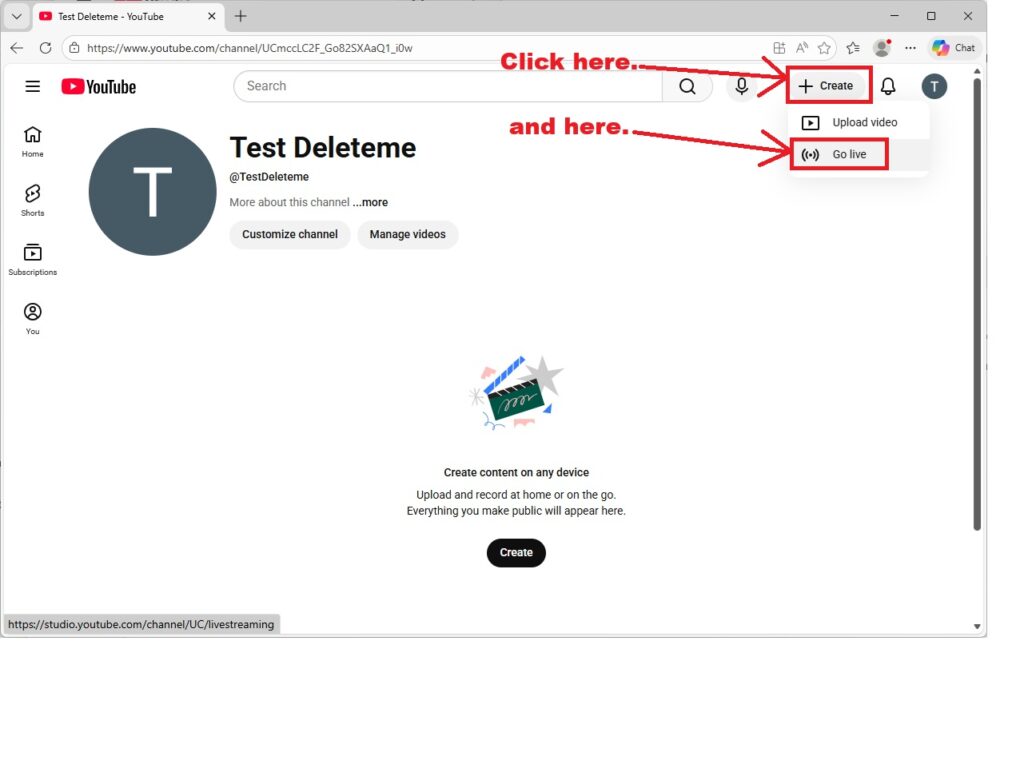
- In your brand new channel, click Create and Go live.
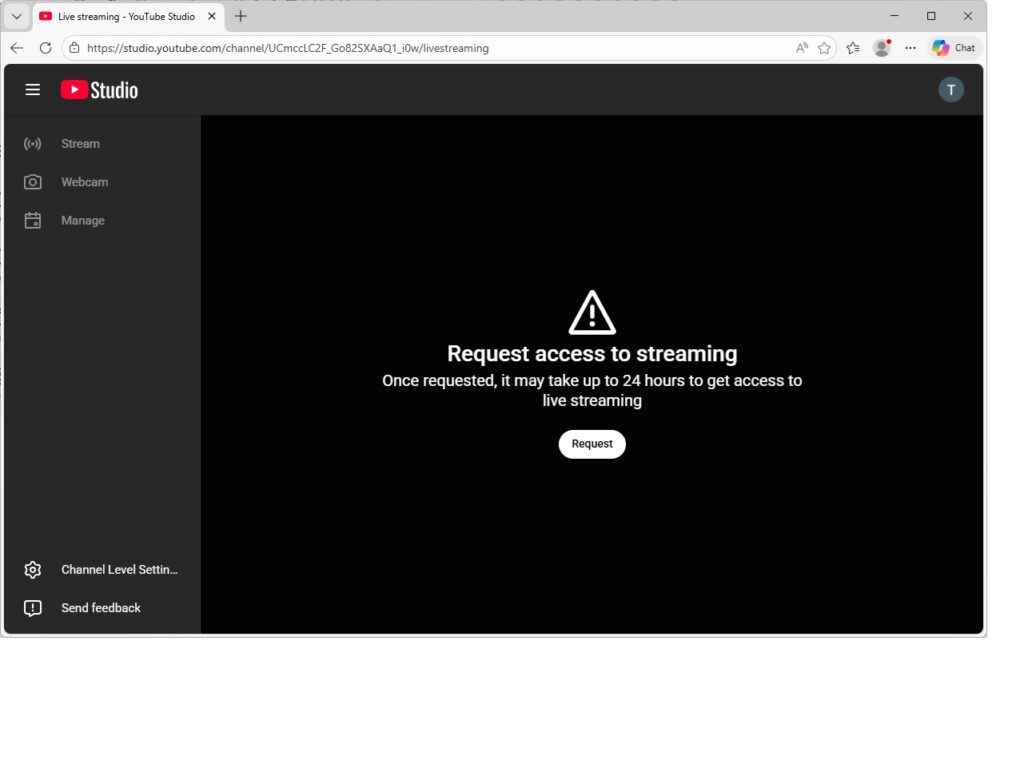
- In the next screen, click the Request button to request access to streaming. Give the confirmation screen the code YouTube sends your cell phone.
- Now, wait 24 hours. While waiting, add a banner page and other customizations as you see fit to make your channel look professional.
Screenshots for setting up your YouTube account and your first livestreams. Do this from a computer.
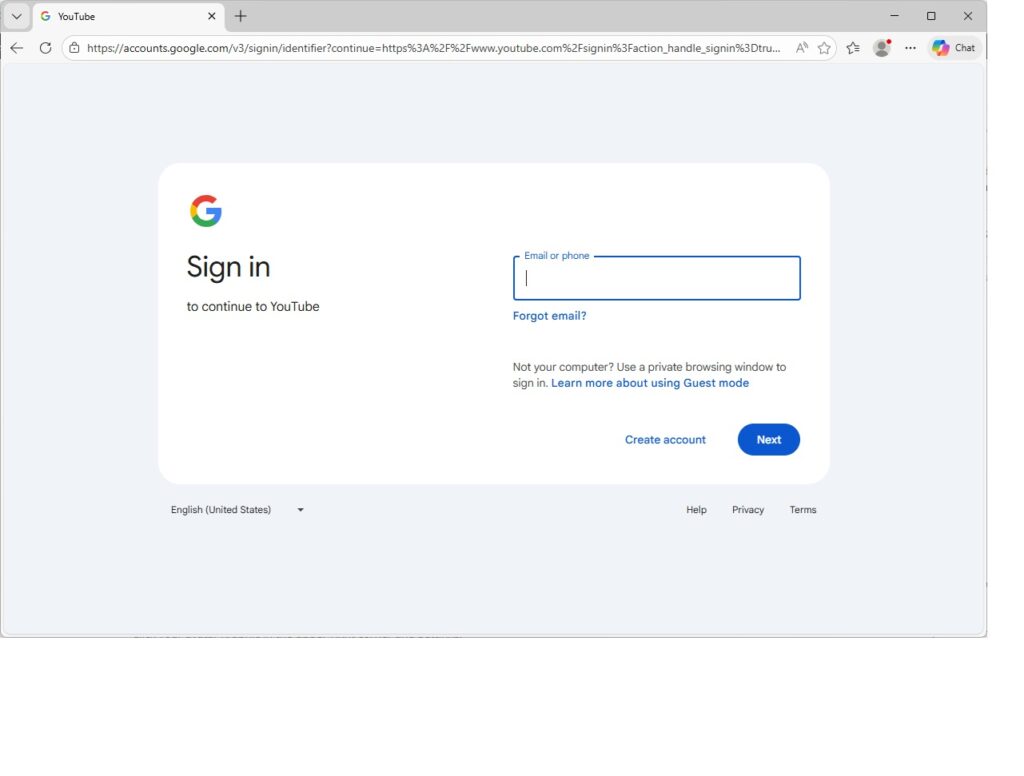
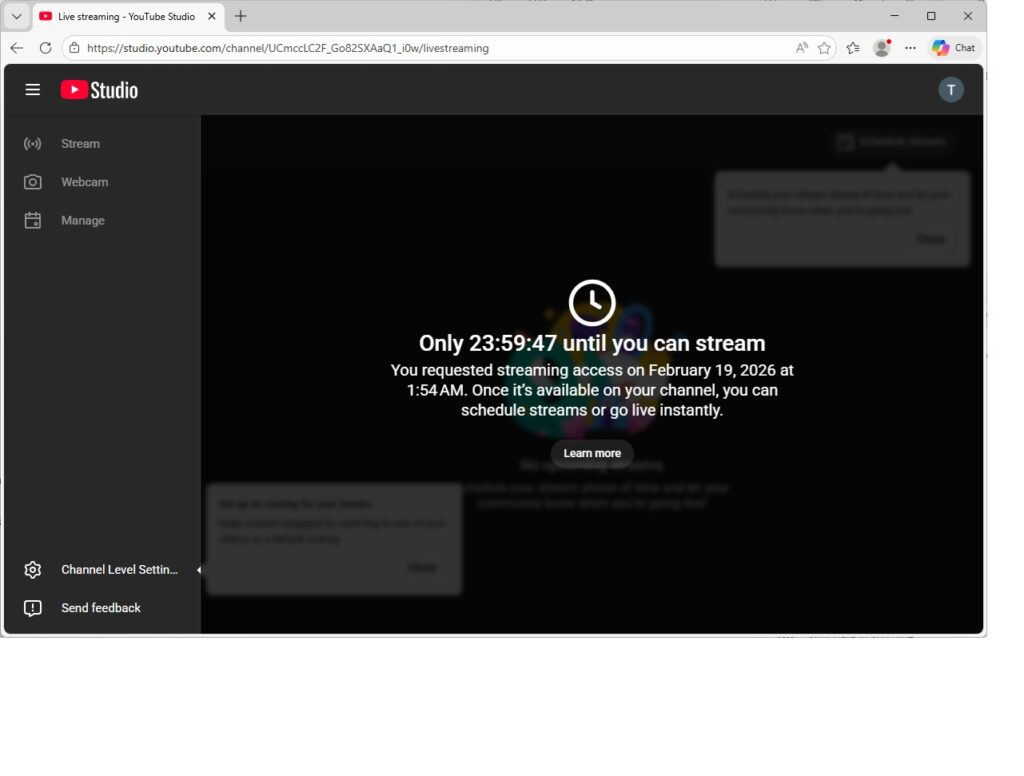
24 hours later, you should be ready to livestream.
I tried a couple of tests with my "Test Deleteme" channel and they worked.
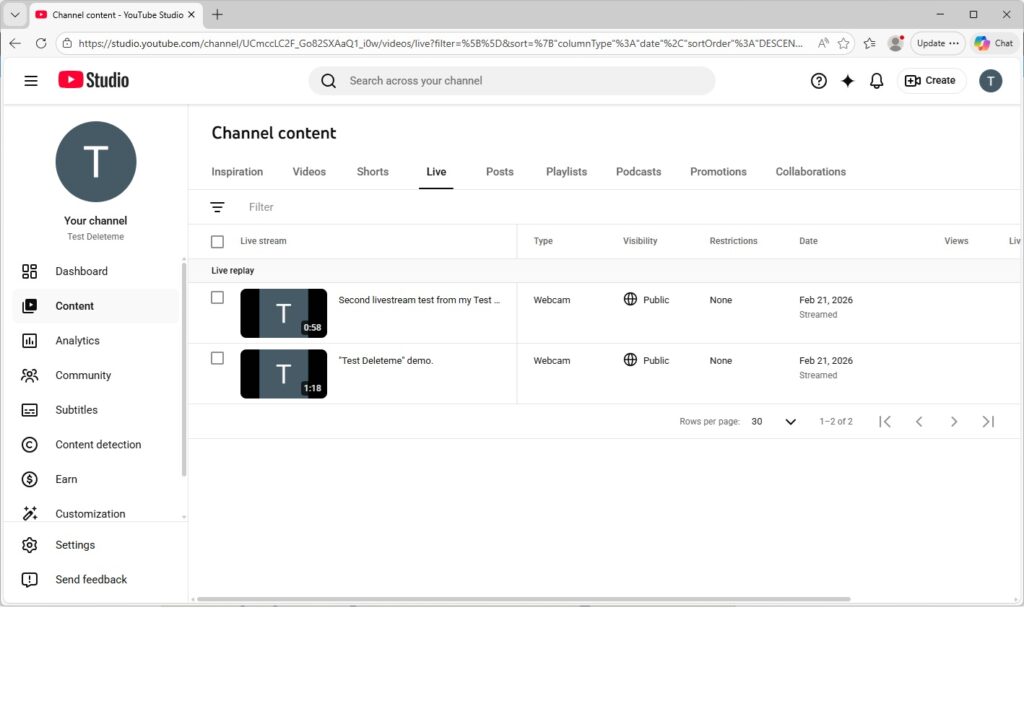
Capture livestream content - simple with YouTube Go Live
- From any web browser on a computer with a webcam and mic, go to https://www.youtube.com and sign in to your youTube channel.
- Go to YouTube Studio.
- Click Create...Go Live.
- Click Webcam in the next screen.
- Navigate through the wizard to fill in a title, description, and other attributes.
- Click done and review the preview.
- When ready, click "Go live."
Screenshots showing how to go live from YouTube. Do this from a computer.
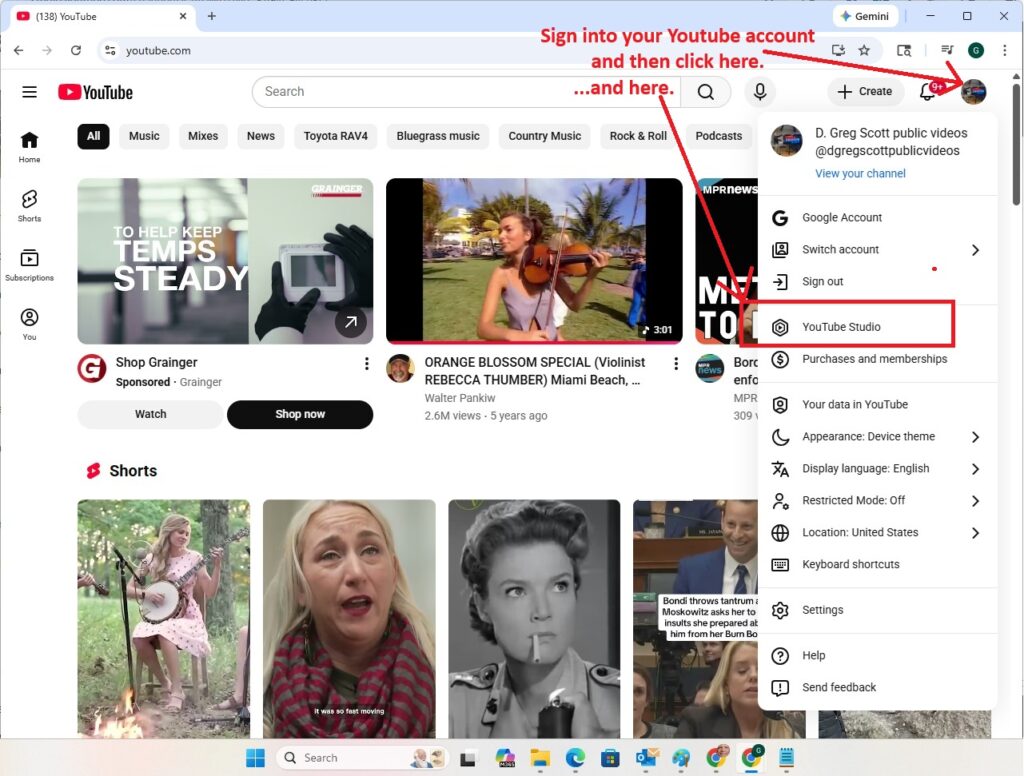
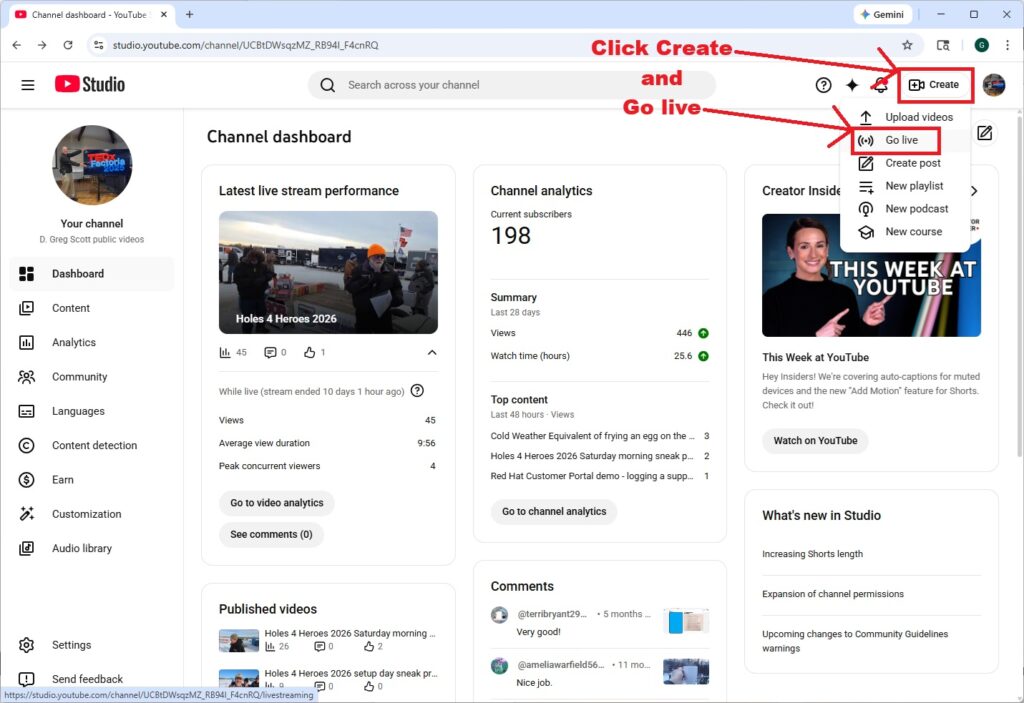
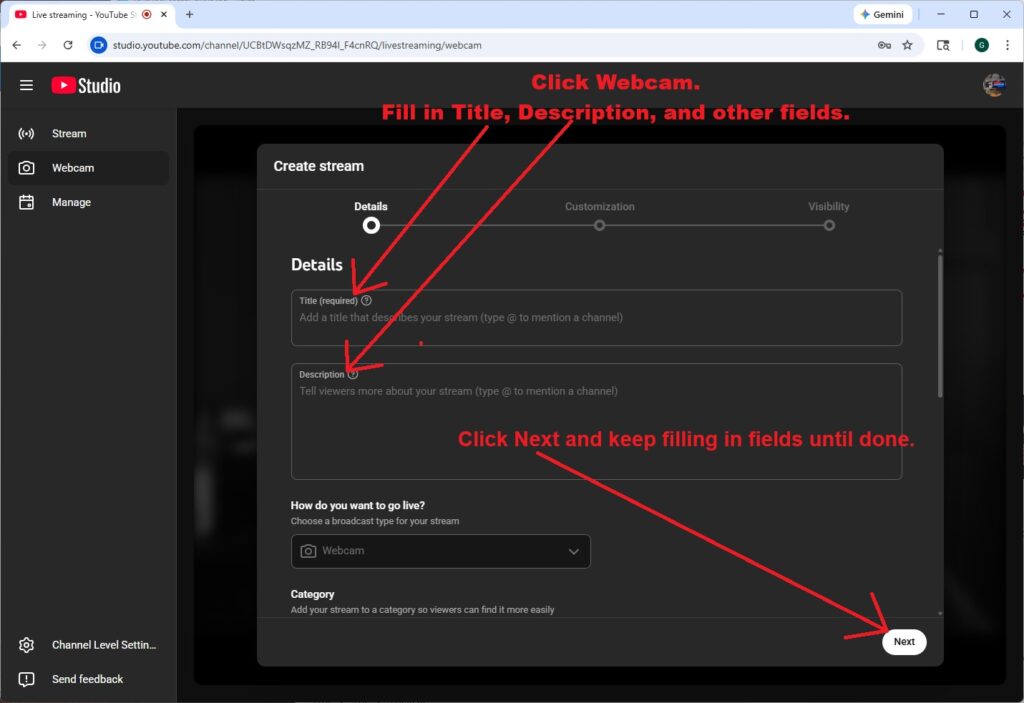
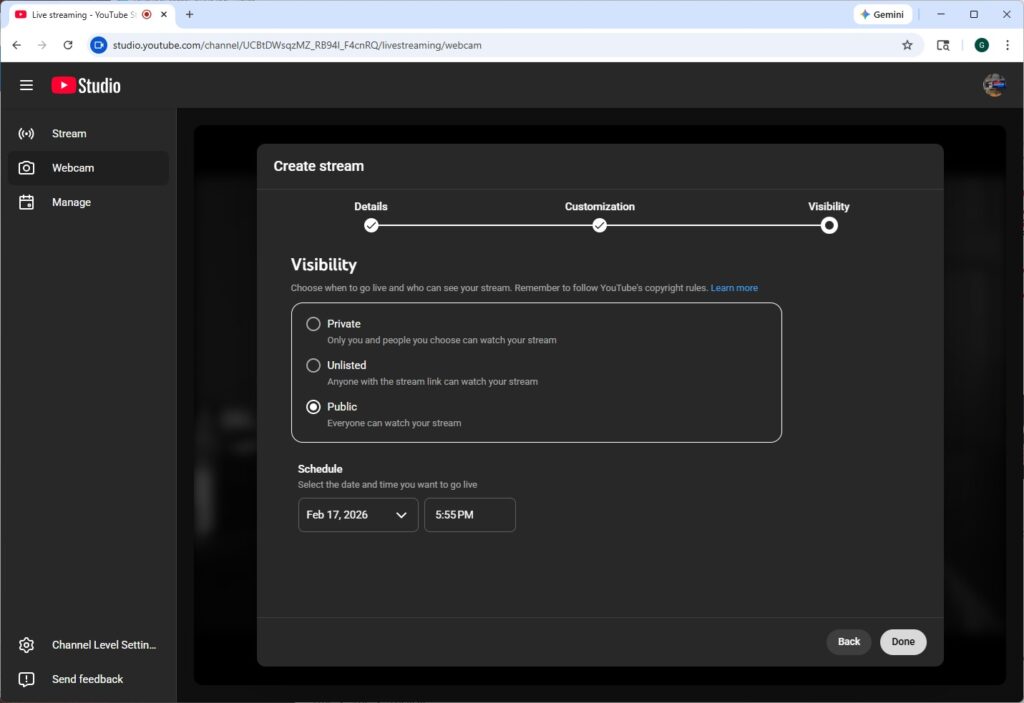
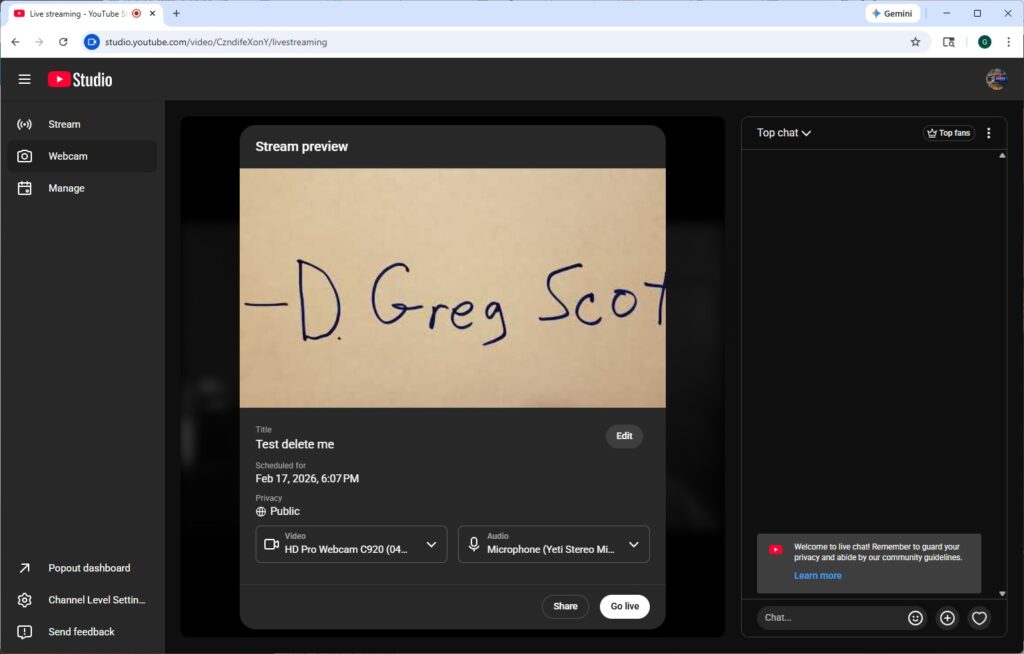
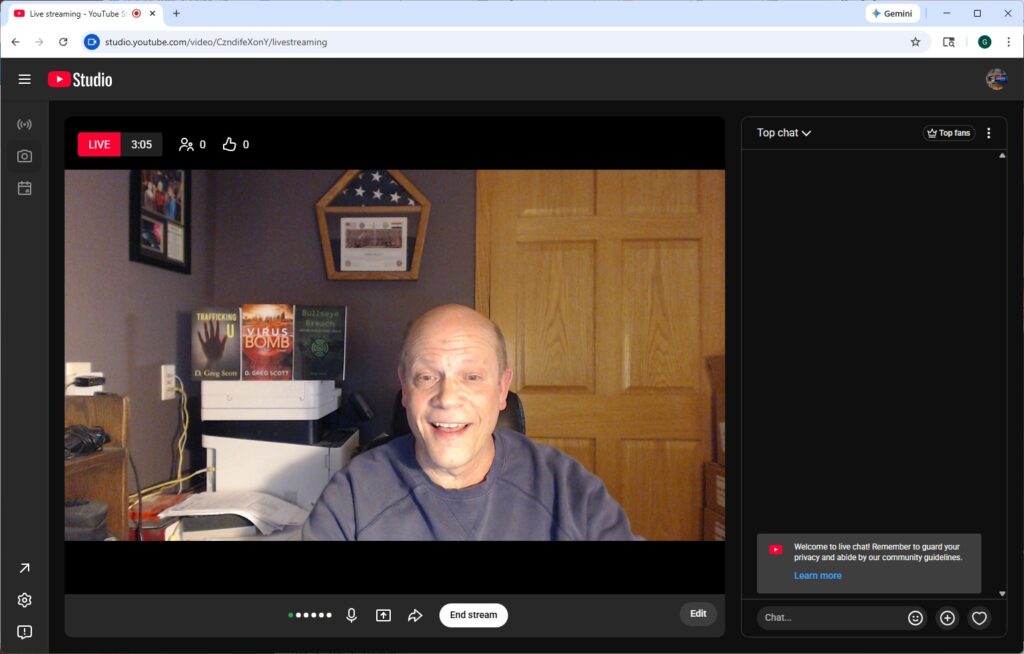
If you want to deliver a simple video message to your audience from your desk or office, this livestream choice will work. But it's not portable and limits you to your computer, webcam, mic, and screen shares. You can share an entire screen or specific windows or browser tabs.
More sophisticated livestream content with Open Broadcaster Software (OBS)
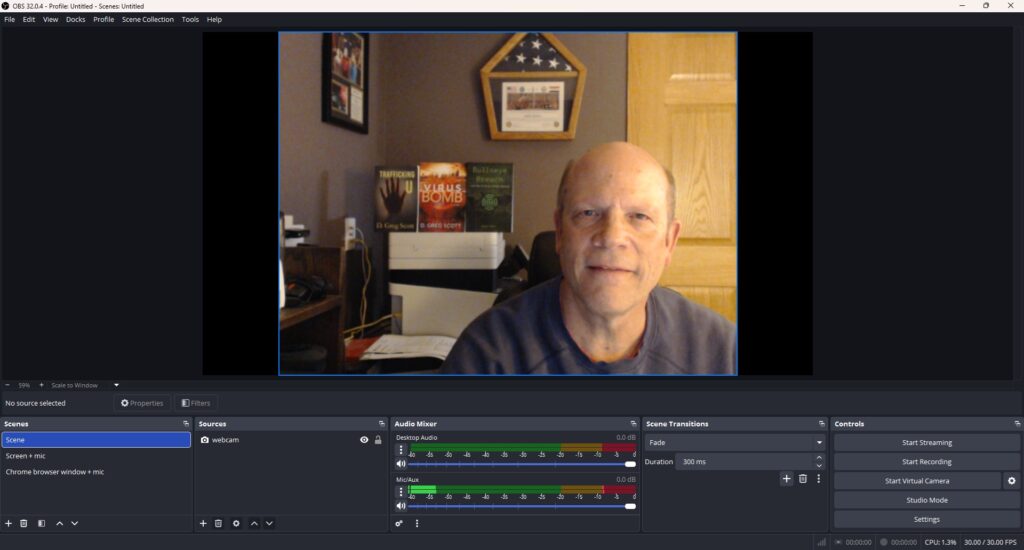
The popular free and open source desktop streaming app, OBS, offers a professional broadcast and recording studio inside a computer. It can livestream to YouTube and other services, or record video locally. It supports combining multiple input sources into scenes, scene transitions, and a wealth of settings and adjustments. How-to tutorials are easy to find and a vibrant community supports it.
I use OBS for presentations when I need more sophisticated scenes than YouTube Go Live offers. OBS is great software. It gets better with every new version. But OBS needs a computer. It's not portable.
Record Your Channel ID
YouTube offers a concept called a Livestream event. The idea is, set up an event, YouTube will generate a URL for the upcoming livestream, and you can advertise it for your audience to watch live. The problem is, livestream events only work for one livestream session. If you run a test prior to the event, or maybe livestream a sneak peak preview, that event URL is no longer any good. When you run the event, the event livestream URL will be different than what you advertised and nobody will be able to find it. For those reasons, I learned the hard way that I don't like YouTube events.
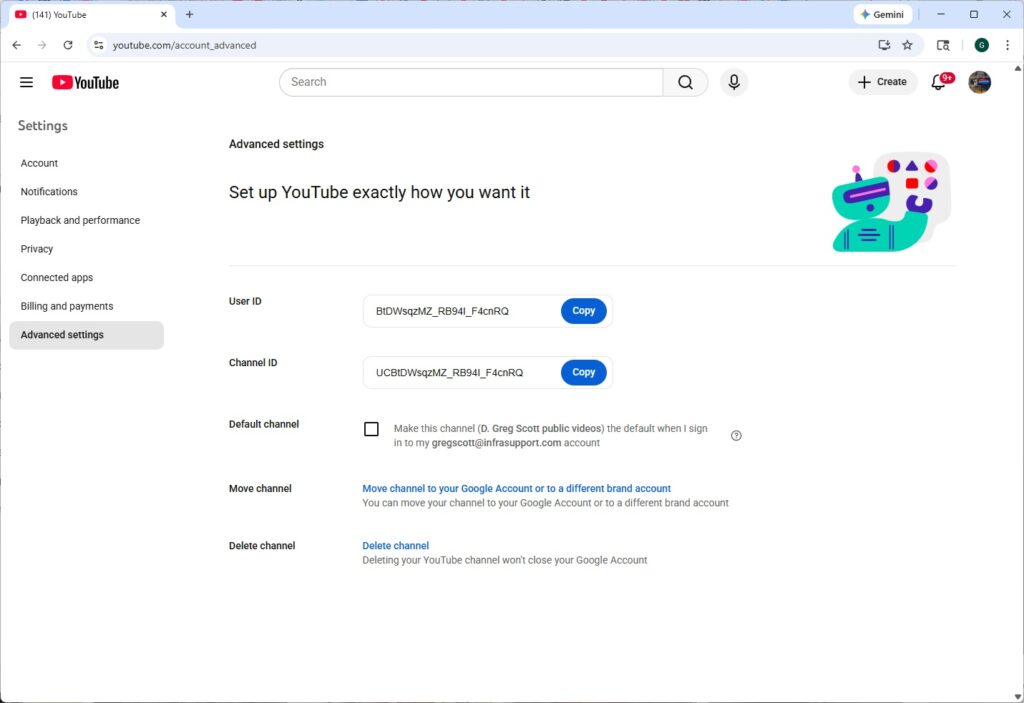
Instead, find your Youtube channel ID and use it to make a URL good for anything you livestream from your channel. Here's how to navigate to it. These steps assume you have already created your Youtube channel and enabled livestreaming.
- In any web browser, go to https://www.youtube.com and sign in to your Youtube channel.
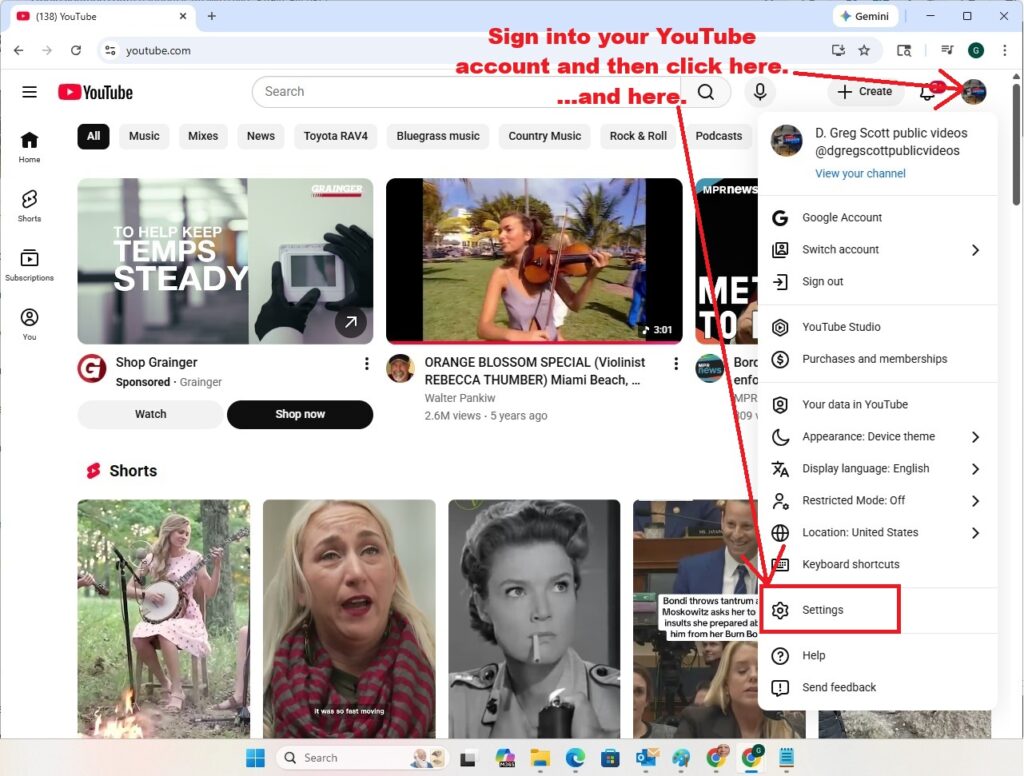
- Click your avatar graphic in the upper-right corner and Settings.
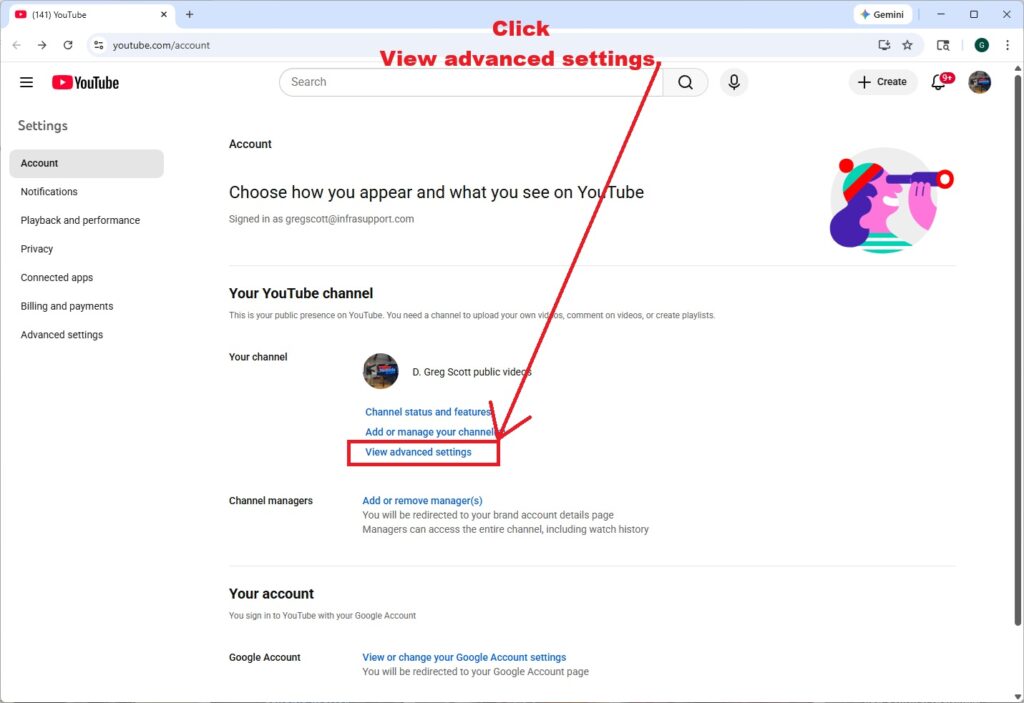
- Click "View advanced settings" in the next window.
- That should bring up a window showing your user ID and channel ID.
Screenshots to capture your YouTube channel ID. Do this from a computer.
Livestream Portability with a cell phone and Streamlabs
Back in 2021, I found an easy-to-use cell phone video codec, but that app never found a viable community and died. It depended on coordinating with the YouTube Go Live website. In the YouTube Go Live screen above, Instead of clicking on "Webcam," click on "Stream" and then connect to it from the cell phone app.
After that other app died, I found a better one named Streamlabs, from the same company that makes OBS. At first, I used Streamlabs by connecting to YouTube from a web browser on a computer to set up the livestream, similarly to setting up that earlier app. But I should not need to connect to YouTube from a computer to stream from a cell phone. So, in 2026, I looked for a way to go completely portable.
I found it. I probably should have found it a long time ago, but better late than never. Do these setup steps one time.
- From any web browser, go to https://streamlabs.com/, set up a free account, and log in.
- From the Streamlabs dashboard, click the round graphic in the upper right corner and go to Account Settings.
- From the Account Settings window, Click Platform.
- Click "Merge" to merge your Streamlabs account with your YouTube channel. This will take you to a dialog screen to log you into YouTube and prompt to allow YouTube to share details about your videos with Streamlabs. Grant all those permissions. This is the key to making this work.
- On your smartphone or tablet, download and install the Streamlabs app. I did mine from an Android phone. If anyone has an iPhone and wants to share your experience, contact me.
Screenshots showing how to set up your Streamlabs account. Do this from a computer.
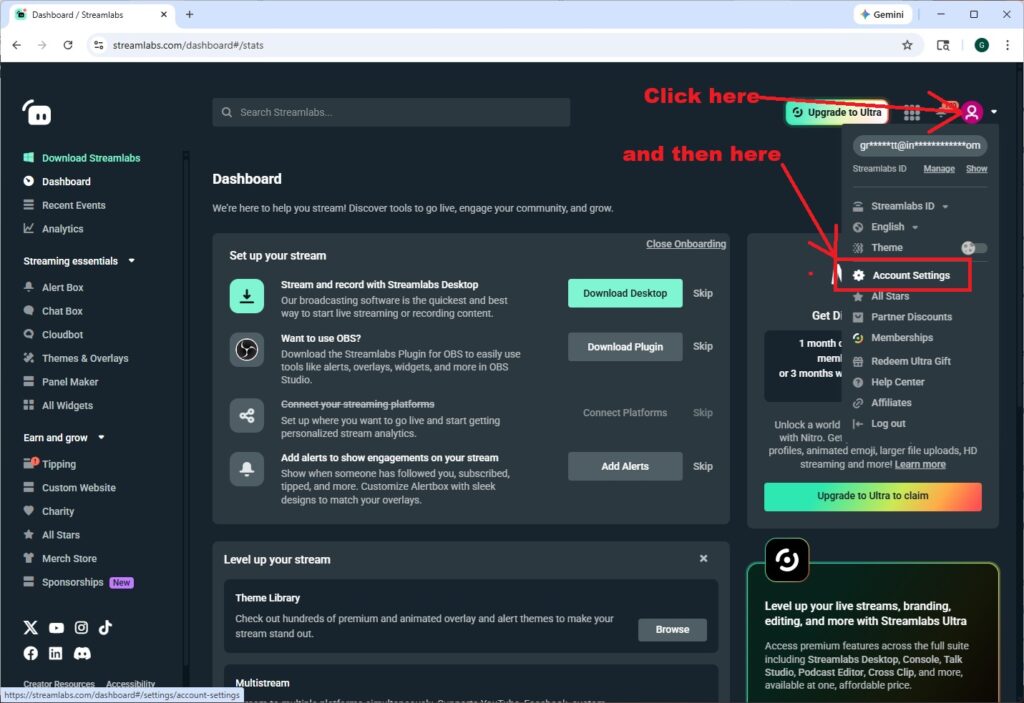
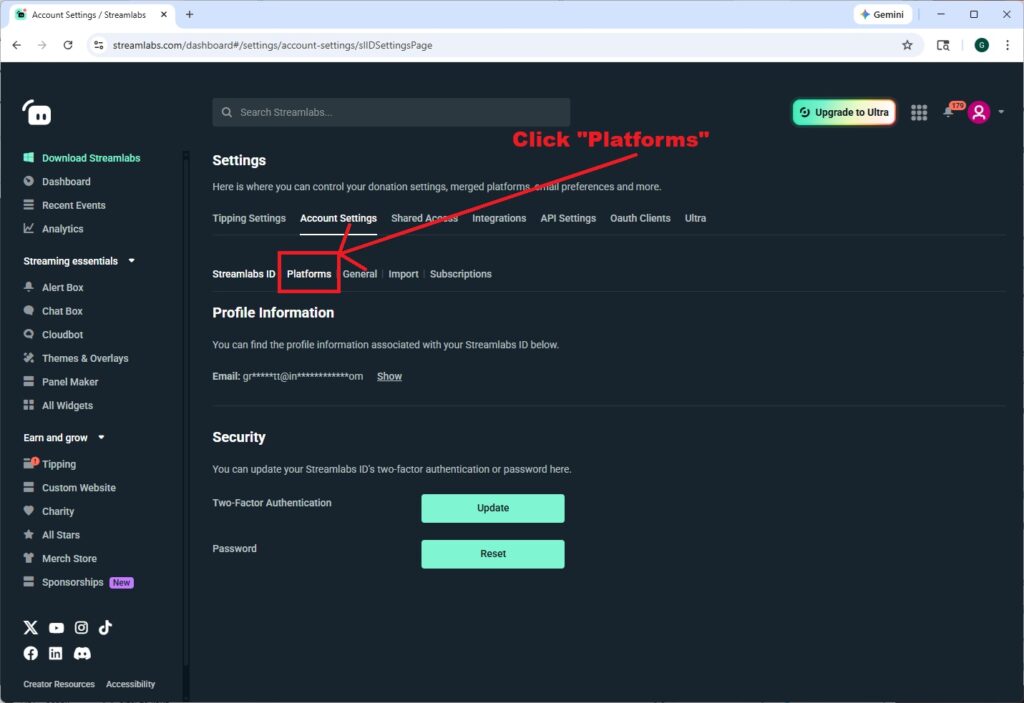
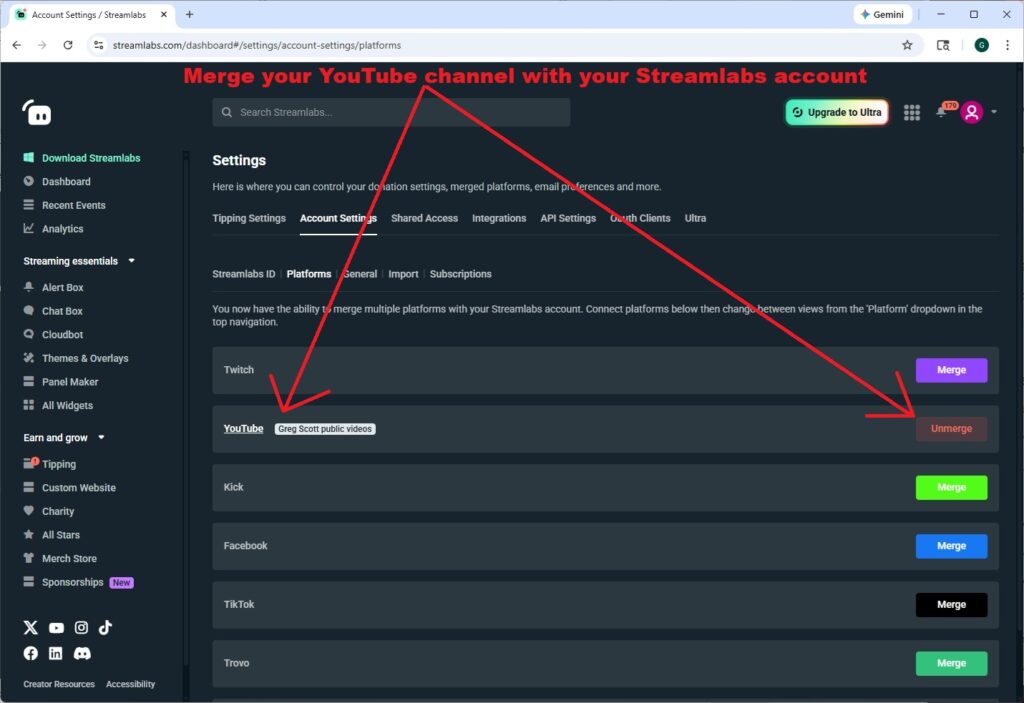
Do these steps every time to run a livestream.
- Launch the Streamlabs app from your phone and login to Streamlabs if not already logged in.
- Turn your phone to the landscape (sideways) position. Tall skinny cell phone videos never show enough information.
- Tap "Go live."
- Select your YouTube channel and tap Next.
- Fill in a stream title and description, and tap "Go Live."
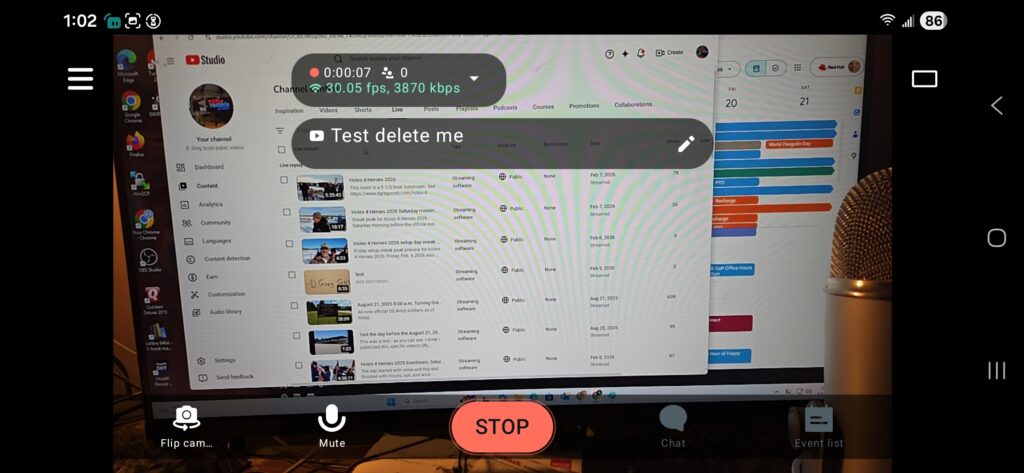
- Keep an eye on a counter at the top of the screen. If it's counting, then you're broadcasting live.
Using Streamlabs on your phone to run a portable livestream.
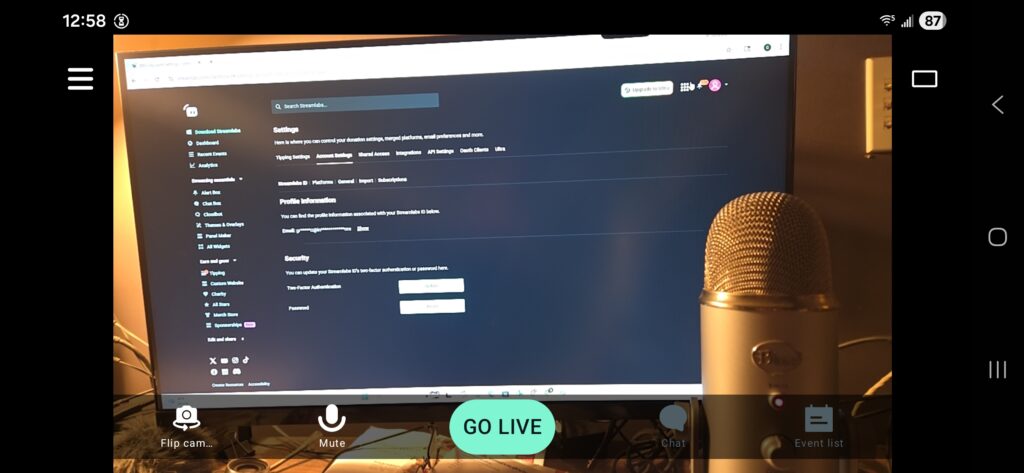
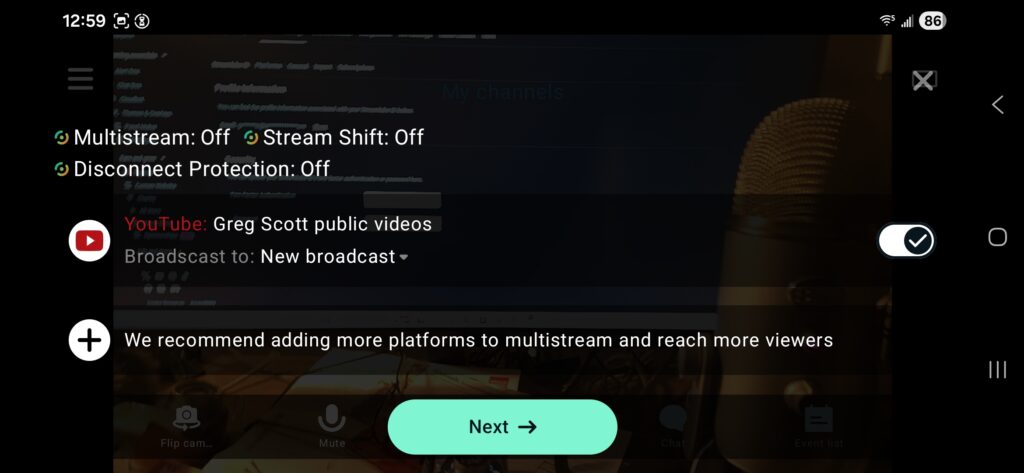
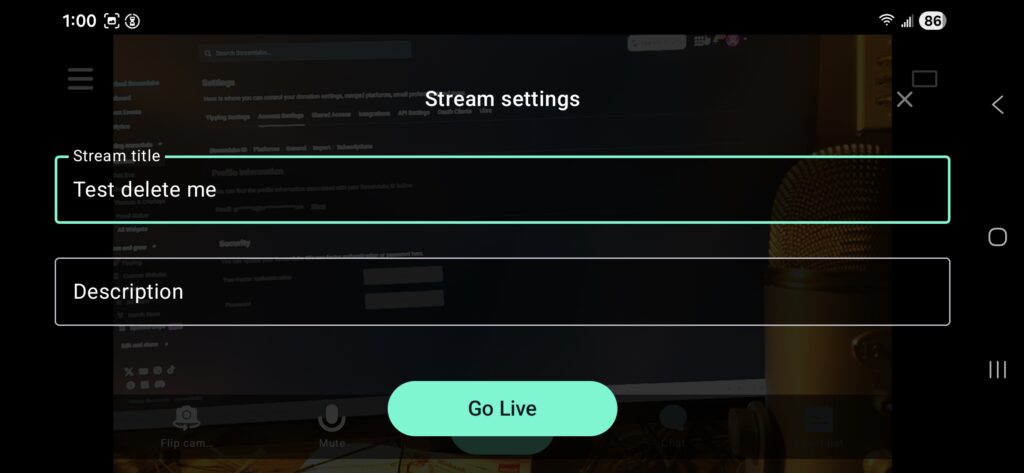
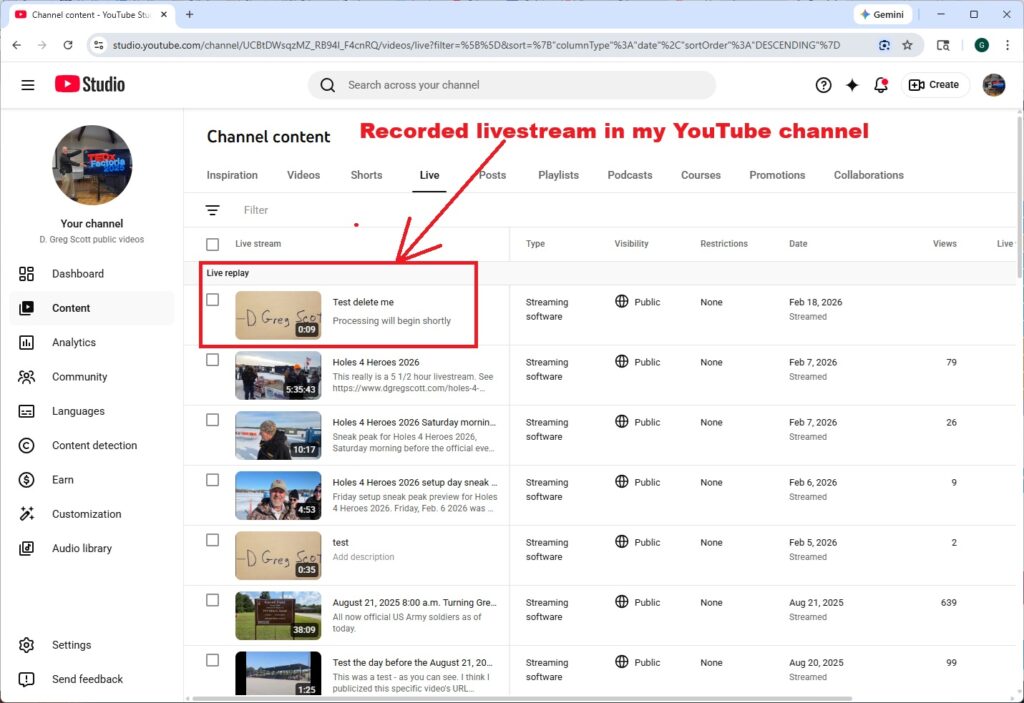
Run the livestream from your phone and then see the recorded video in your YouTube channel.
Streamlabs offers a free and paid version. The paid version offers more advanced features than the free version. The free version works just fine.
If you find yourself surrounded by SUVs full of federal agents wearing masks and toting guns, grab your phone and start livestreaming. Your video will be inside YouTube, not your phone, so everything they do will be immediately available for the whole world to immediately watch. No uploads because it will already be uploaded.
Wonderful. How does the public find it and view it?
Presentation
For anyone to watch your livestream live, as you capture it, you need a certain number of YouTube channel subscribers. Some documentation says you need 50 subscribers; others say you need 100. If I find an authoritative number, I will update this paragraph. But even with no subscribers, you can still capture and store livestreams for later playback.
If you set up a future YouTube event, then YouTube would have given you a URL. Copy this URL and send this to your audience. When the time comes, they can launch a web browser, paste in the URL, and watch your livestream. I didn't document how to set up YouTube events because I don't like them. They're not flexible. See above.
Instead, send your audience a URL with your YouTube channel ID. See above for how to find your channel ID. The URL will look like this. Your audience will only be able to watch live if your YouTube channel has the required number of subscribers.
https://www.youtube.com/channel/PASTE-CHANNEL-ID-HERE/liveOr, to embed your livestream in a frame in a page in any website, insert code like this at the appropriate spot.
<iframe src="https://www.youtube.com/embed/live_stream?channel=PASTE-CHANNEL-ID-HERE" allowfullscreen="" width="560" height="315" frameborder="0"></iframe>To make embedding work, you need to navigate another one-time setup process to tell YouTube to allow it.
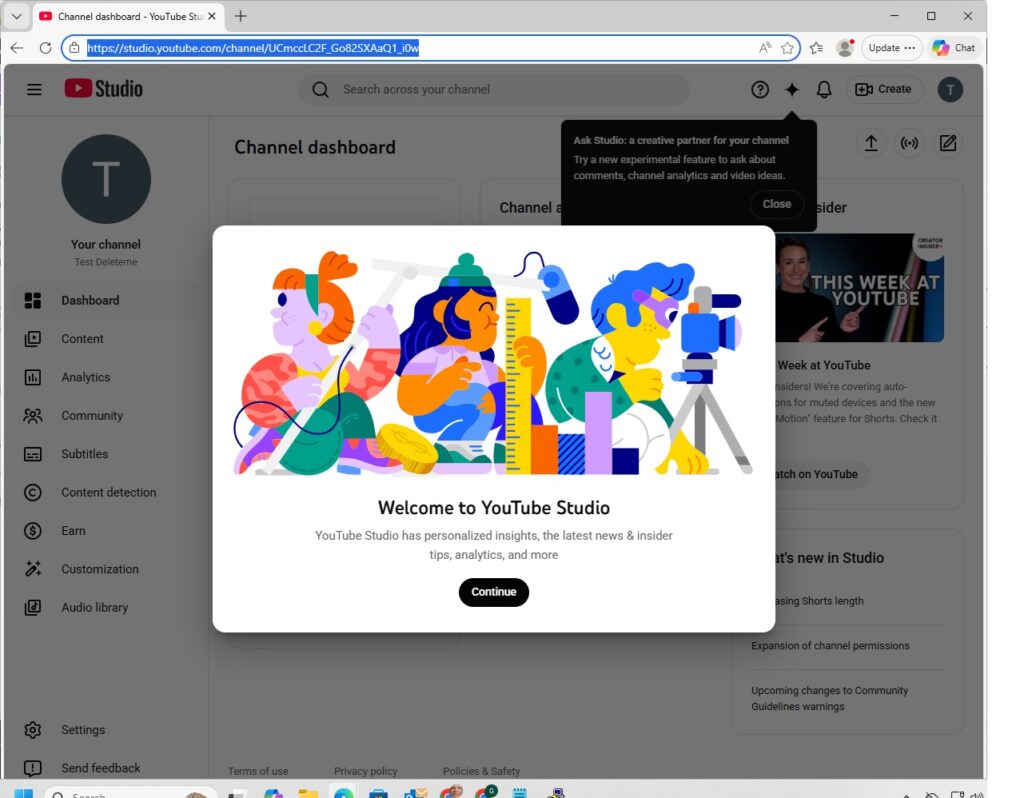
- Go to https://www.youtube.com in any browser and navigate to your YouTube Studio.
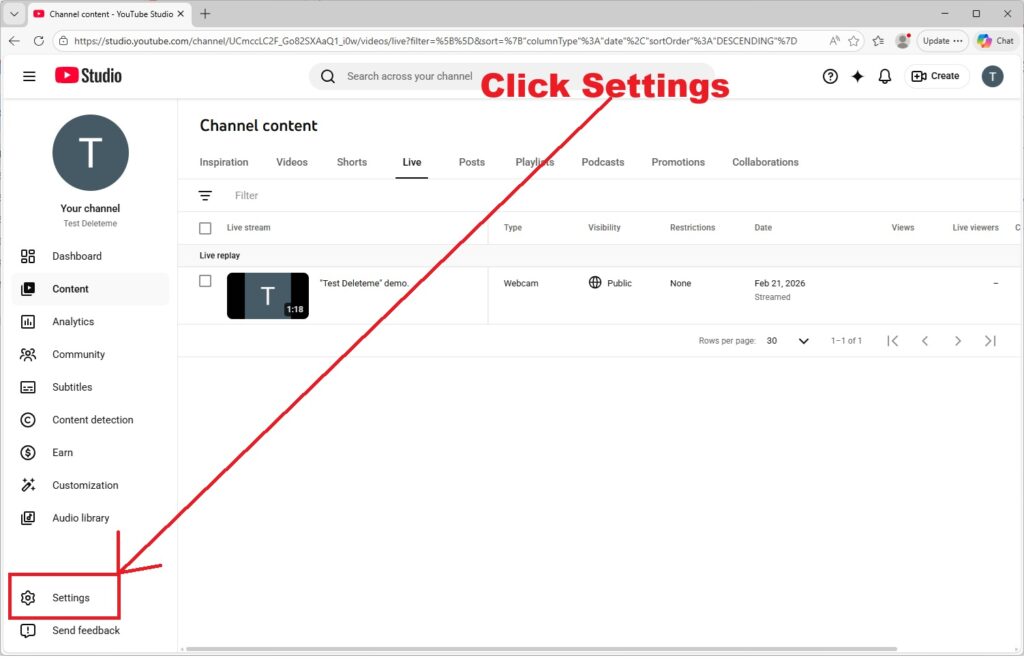
- From YouTube studio, click Settings.
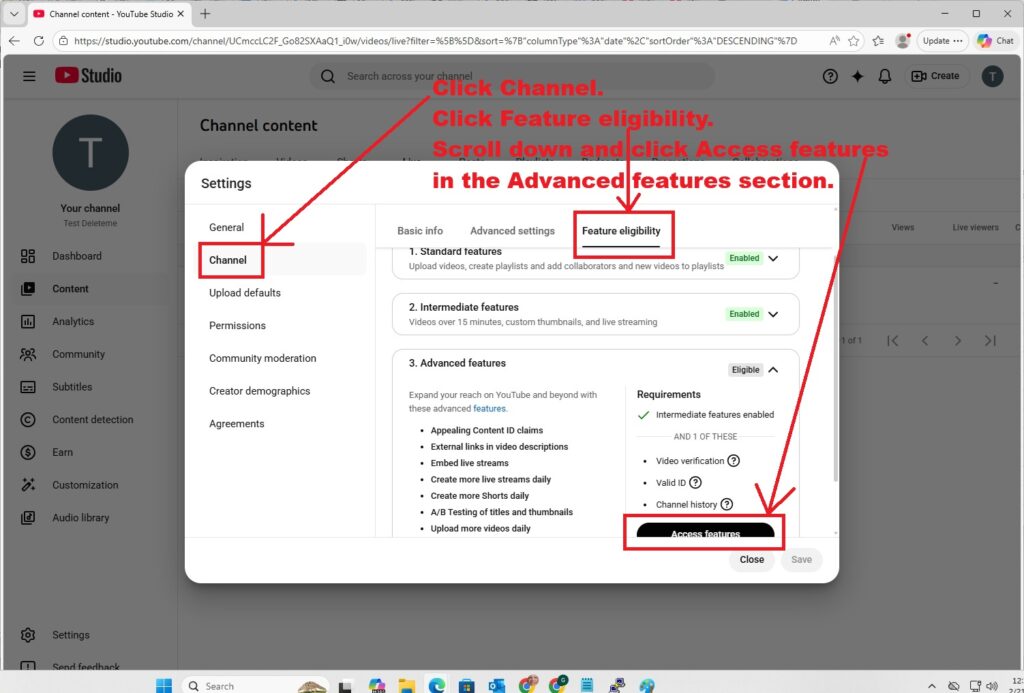
- In the Settings screen, click Channel and Feature Eligibility.
- Scroll to the Advanced Features section at the bottom and click the the "Access features" button.
- Click Save.
- Follow YouTube's directions to verify that you are really you. You will need to send YouTube a selfie from your phone.
Embedding is a powerful capability to use with a marketing partner or sponsor who might have an audience interested in your content. Sponsors can attract their audience to view content from your livestream channel on their websites, creating a win for everyone.
When your livestream finishes, YouTube will give your now-recorded video its own URL. You and your marketing partners can advertise that and/or embed that into a frame on your websites.
Putting it all together
I added this section two days after originally posting this. By now, the 24 hour waiting period has passed on my brand new Test Deleteme YouTube channel. I had originally planned to delete this channel right after setting it up and grabbing screenshots. But now, I think I will keep it around as a demo. I should be able to run a livestream from this channel, and show it from from another livestream from my real YouTube channel, D. Greg Scott public videos.
Results are below.
Test Deleteme demo livestream
Embeds from my Test Deleteme channel don't work yet. YouTube says it takes a day or so to grant embedding permissions. I went through the process on Feb. 21, 2026. So for now, here is the link. It will open in a new tab. https://youtube.com/live/voYyo96Hp8A
D. Greg Scott public videos recording of the Test Deleteme demo video
This embed is the livestream from my D. Greg Scott public videos channel of me livestreaming from my Test Deleteme channel.
D. Greg Scott public videos channel livestream
This embed will show any livestream from my D. Greg Scott public videos channel.
Recent Comments